You can filter, sort, and customize how you view your photos and videos on the app or a browser. Adjust things like sort order, media type, and thumbnail size to find what you're looking for faster.
Sort 
Arrange your media in a certain order.
Date Uploaded: Sorts images by when they were added
- Newest to Oldest: Recent uploads appear at the top
- Oldest to Newest: Older uploads appear at the top
Date Taken: Sorts images by when the photo was originally taken
This option uses EXIF data to sort your media.
- Newest to Oldest: Recent photos appear at the top
- Oldest to Newest: Older photos appear at the top
Title: Sorts images alphabetically by their title (not the original file name)
- A to Z: Alphabetical order
- Z to A: Reverse alphabetical order
Filter 
Control what type of media shows.
- All: Shows both photos and videos
- Photos: Shows only photos
- Videos: Shows only videos
Filter by Uploader
Show photos based on who uploaded them. Select an option and tap Apply.
- All: Shows uploads from all members
- Uploaded by Me: Shows only your uploads
- Uploaded by Others: Shows uploads from other members
Other Filters
Filter by other options. Select an option and tap Apply.
- Favorites: Shows images you've favorited
- Mobile Uploads: Shows photos and videos uploaded from your mobile device
Crop 
Choose how your image thumbnails appear. Click the Crop icon to switch between boxed thumbnails and original proportions.
Zoom 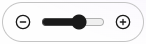
This option is only available on a computer.
Make your media thumbnails larger or smaller. Click and drag the slider, or tap + / - to adjust the size.
Sort and Filter settings are global. These settings will apply to all Groups, your Library, and all Albums